Alex Ning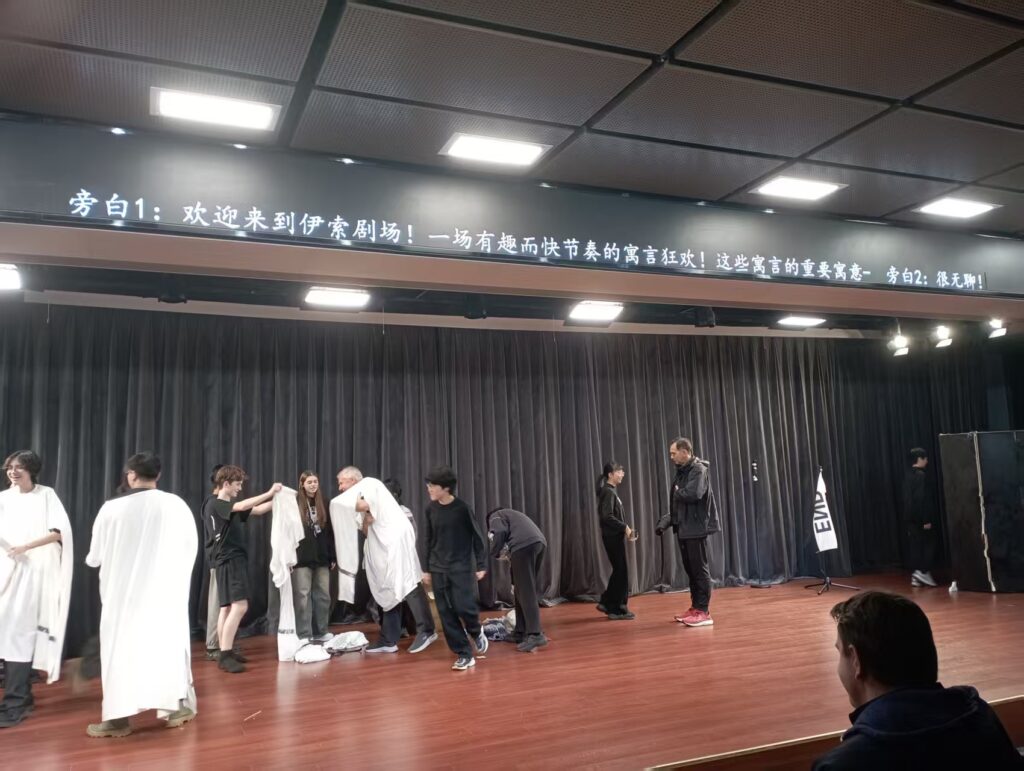
The Drama Club performance on November 21 is the first performance that Chinese speakers could understand, thanks to the adding of Chinese subtitles. This article will show you how those subtitles were created, from idea to product, so that you might be able to make something helpful when you need it.
Step 1: Problem
When there’s a problem, try to think of ways to solve it, no matter how difficult it might look. That is what I thought when I saw many Chinese parents not understanding the story of the last performance. There is a screen above the stage, so I decided to make a program that automatically puts the next line of translated subtitles on it when a button is pressed.
Step 2: Learn
HDPlayer, the software that controls the screen, works like this: I have to put text in a text in a text box and click the send button. Then, there will be a popup window, and I have to manually close it after the screen is loaded. I wanted a program that does it automatically.
I chose Python as the programming language: it is easy to use, and it is easy to search for tutorials. I needed to be able to detect and control the keyboard and mouse, so I used AI as a tool to help me find useful modules that I could use, and found 2 useful libraries: pyautogui and keyboard. I still need to write the code by myself, because it is difficult to fix bugs if the code is written by AI.
The screen also has an annoying loading animation, so I looked for tutorials about the program and found a way to turn that off.
Step 3: Create
I started creating the program. I used canvas to send files between the school computer and my pc, so that I don’t have to write all of the code at school. However, I still have to test the program, so I often stayed at the auditorium after school to work on the code.
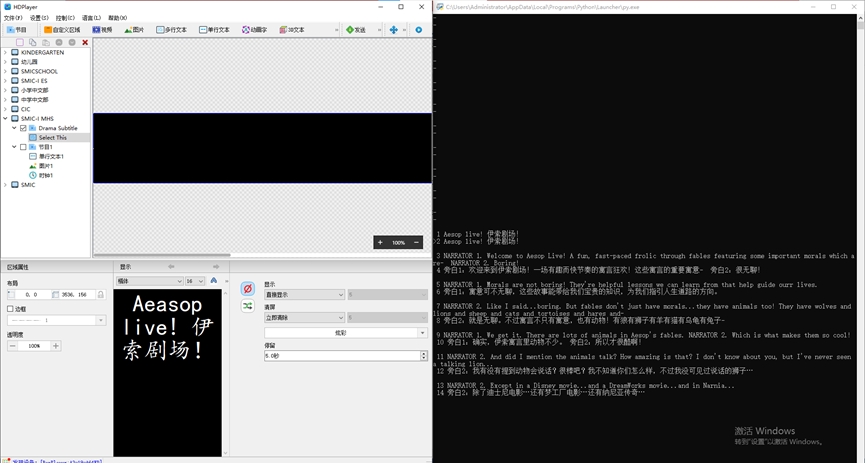
I also need a translated version of the script. At first, I decided to do the translation by hand, but then I found a better and more efficient way: use google translate and adjust by hand. It still took a lot of time, because the translation is often not accurate, and I have to fix it by hand.
Step 4: Feedback
After the program was completed, I got some feedbacks from students. One of the feedbacks is that some short lines are showing too slow, so I combined some of them into the same line. Another is that long and fast lines don’t show well, so I switched from using single-line text box to a multi-line text box.